Showing posts with label wireless. Show all posts

Monday, August 13, 2018

RFID and NFC Blocking Wallets

Introduction

I've been on the lookout for a new wallet that blocks RFID/NFC frequencies to protect against scanners from people walking by you and scanning your cards' data.

Even though contactless cards have a limit set to allow payment without needing the pin, and if the limit is exceeding, a pin will be required, this limit varies from one country to another, and is enforced per transaction, not as a daily cap. So, if your card is cloned, the scammers can use it at different places throughout the day multiple times until you cancel/block the card with your bank.

Note: The pictures are taken with my OnePlus 5 phone's camera and are in no an indication of any product's quality. The camera isn't as good as that of Samsung or iPhone.

Finding The Right Wallet

My first attempt was to find one from mainstream wallet makers such as Mont Blanc and Prada, however, Prada didn't have any that block RFID/NFC and Mont Blanc only had one, but was bulky due to the big coin pouch in it.

My criteria:

  1. Minimalistic: thin & no coins.
  2. Fit big bank notes (height of 76 mm & length of 160 mm). I travel to Europe and Japan, and they have big bank notes.
  3. Fit at least 6 cards.
  4. Block RFIC/NFC.
  5. Don't bend cards.
  6. Look professional (not childish or cheap knockoff).


Attempt 0

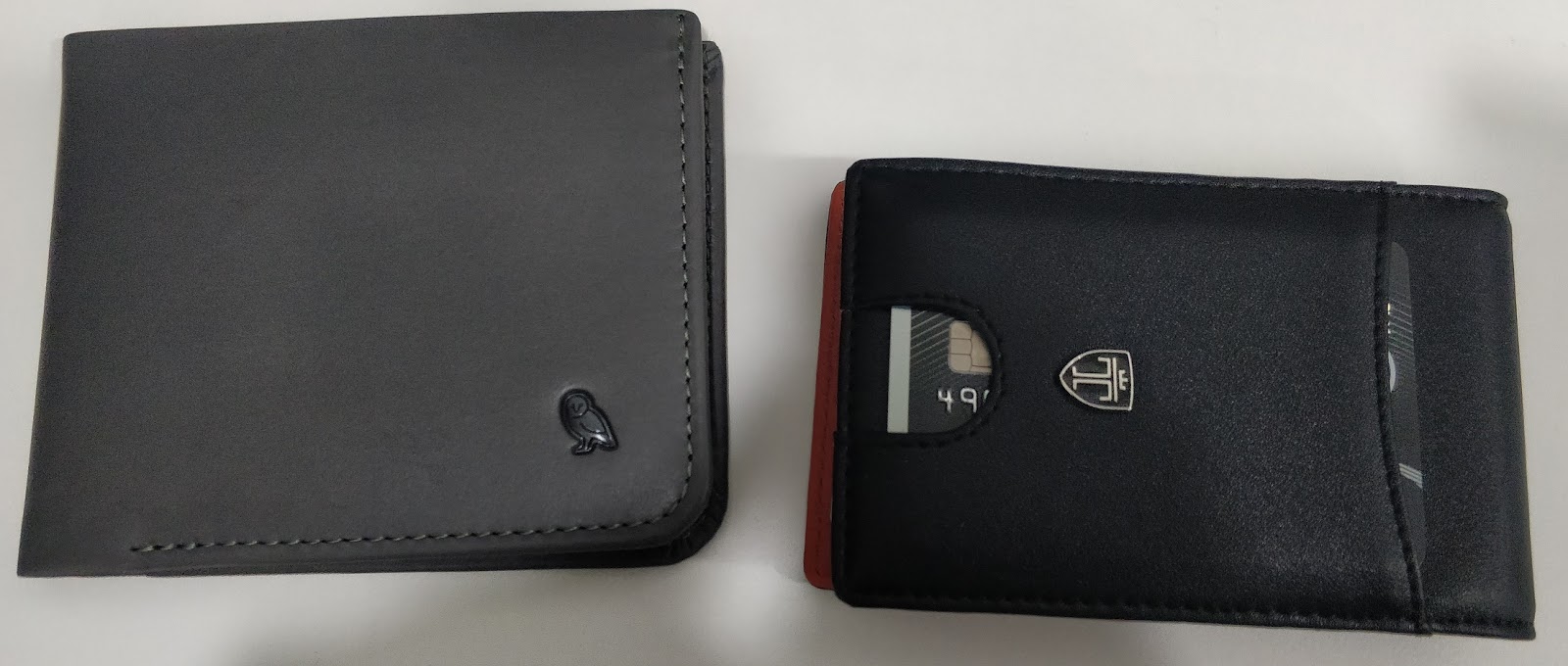
Initially I found one on Amazon by Travando: Travando Money Clip RIO wallet. After using it for sometime, I wasn't really comfortable with it.

Pros:

  • Slim
  • Fits 6 internal cards & 1 external for quick access
  • Blocks RFID/NFC
  • Fits big money notes

Cons:
  • I never used a money clip approach before & I didn't like it at all. The money felt very exposed, so if you carry a lot of cash, you'd expose yourself in public when opening the wallet.
  • The wallet is lengthy and the cards get bent over time.
  • It didn't look professional enough, but this is a personal preference.
  • Because it's lengthy, it would sometimes bend one half away from the other, so over time, it'll damage the mid-section joining the two halves.
  • The money clip can't handle too much cash, so I had to slide in only half side and leave the other half out. This also helps getting specific bills out.

One thing as well: they're eco-friendly and use fake leather (faux leather), which is basically synthetic plastic/polymer material that feels like leather. It doesn't age, smell or scratch in a similar way, though. It also looks a bit different. This may or may not be to your liking.

Attempt 1

I kept looking and finally settled on Bellroy's Hide and Seek wallet (HI size for big bank notes). So far, I like it.

Pros:
  • Slim
  • Fits 4 quick use cards & 5+ cards in a group slot for stuff you don't use often
  • Blocks RFID/NFC
  • Fits lots of money
  • Has a hidden bank note/money section in addition to the main one
  • Hidden coin slot inside the hidden money section (a slot not a pouch)
  • Looks professional & smells good
  • Many options for colors
  • Cards don't bend and align properly when the wallet is pressed

Cons:
  • None so far. Will update if I face any.

Pictures


In the pictures above, I have 4 cards for quick access visible, and 4 others in the group pouch above the card on the left. There are many more slots available in the Bellroy. Check the link to their site to see more pictures.

Tuesday, December 22, 2015

Home Networking: PowerLine Ethernet vs Wireless Bridging

Old Setup

I currently stay at a flat where each room has a network point and all connect to the building's switches. I disconnected all points from the building's switch and used my own to isolate the traffic.

This has served me well for years until last year where dust, humidity and water leakages have killed the switch, and as I'll be moving out to a new place, I didn't want to buy another switch.


Enter PowerLine Ethernet

Instead of laying network cables around, I thought of using PowerLine Ethernet adapters. Those allow you create a network between devices using house power cables, as long as all cables terminate to the same distribution board (the one that has the circuit breakers).

Attempt 1

I bought a D-Link "DHP-W310AV" kit which includes one adapter that serves as a wifi access point + Ethernet port and one adapter with only Ethernet.

I connected the adapter with Ethernet + WiFi in my room and the other one with only Ethernet in the hallway and connected an Asus access point to it to serve the rest of the house.

The D-Link adapter was difficult to configure, very buggy during configuration, breaks connection between adapters easily, and drops connections often causing timeouts. It took me about 2 hours to get things working and felt like I was dissembling explosives! It was garbage.

Attempt 2

I thought it was the D-Link that's a failure, so I ordered a TP-Link "TL-PA4010" kit. It doesn't offer wireless built into it, but it was such a breeze to configure! It took 5 minutes only. It also supports AES encryption, for the paranoid.

Things got better, but not that better. I still got intermittent DNS failures. So this prompted me to link failures to events in the house, and it seemed like the issues were due to high interference with home appliances.

Current Setup

I had bought Ubiquiti access points long ago but them in their box to use in the new place later on, but after all this fuss, I got fed up and pulled out the rabbit from the magic hat.

What I bought was Ubiquiti's UniFi AP 3-pack for $200! Can't beat that price, and what's even better, is that UniFi family comes with a free controller software that allows you to manage thousands of access points (APs) in multiple sites and get statistics. Lots of fancy features at a very attractive price.

One AP got connected to my switch in my room (which connects to the gateway) and another sat in the hallway. The hallway AP connected to the one in my room via wireless, not Ethernet. This way I can avoid the requirement for any Ethernet cabling however it's to be deployed.

Everything is working great now. Here are some screenshots from the UniFi controller interface:


The UniFi APs are so great for anyone needing 3 or more APs in a place, be it a house or a business location, because once you make a configuration it gets pushed to all APs in one shot! No hassle of managing multiple configurations.

They come packed with many features that I haven't listed here. You can download the controller for free from here and explore the options even if you don't have any AP (physically). Compared to Cisco or Meraki APs, these come with similar features and at no additional cost of management software, unlike what Cisco asks for, and you get to run the controller software on your own machines, so no need to trust the data to a hosted platform like Meraki's.

The controller software was written in Java, so it runs on Linux, Windows & Mac. This means you can even run it on a Raspberry Pi!

Sunday, May 23, 2010

AirLive WL-5460AP v2: Almost An Enterprise Access Point

I have two of these at home. They're cheap and sturdy Access Points (APs) that pack many features, most of which I didn't know they existed before poking into them today.

In case you don't believe that these cheap APs are worth it, here are some numbers to shock you: One AP had 78 days of uptime (no restart) and another had 101 days of uptime!
And I say "had" because I updated them with the latest firmware, so they had to be rebooted.

91 images were the total to cover all the features this AP provides! The only downside is that even though the firmware is being updated once in a while, the documentation still refers to the old firmware, so you may have to invest in some trial & error episodes to get things done.

Wireless modes:
  • Access Point
  • Client: Client-Infrastructure / Client Ad-Hoc
  • Bridge
  • WDS Repeater
  • Universal Repeater
  • WISP
  • WISP + Universal Repeater
  • Gateway: AP + Router (Static IP, PPPoE, PPTP & L2TP)
  • Bridge (send beacon)

Features in various modes:
  • 802.1x / RADIUS authentication and encryption (includes accounting support)
  • Encryption: None, WEP, WPA-PSK (TKIP), WPA-PSK (AES), WPA2-PSK (AES), WPA2-PSK Mixed
  • Fragment & RTS threshold control
  • Preamble: Long or Short
  • SSID Broadcasting (Enable, Disable)
  • Single SSID support
  • Inter Access Point Protocol (IAPP): Used to handoff between different APs
  • 802.11g Protection: Prevents network degradation when b & g clients use the same network
  • Transfer Power Level (Tx): Default = 18dB. Lowest = 8dB. Highest = 20dB
  • Watchdog: Reboots AP when watched host can't be reached
  • Wireless Client Isolation: Prevents hosts connected from seeing each other
  • Wireless MAC Access Control (Filtering): Allow/Deny Listing
  • IP/MAC/Interface Traffic Control/Shaping: Quality of Service (QoS)
  • DHCP: Disabled, Client, Server, Relay agent
  • Packet Statistics: WiFi Interface, Ethernet LAN, Ethernet WAN
  • MAC Address Cloning
  • System Logging: All system or Wireless only, and can log to a remote syslog server
  • Network Time Protocol (NTP): Time synchronization
  • 802.1d Spanning Tree support
  • In WISP mode: WAN port (Static IP, DHCP, PPPoE, PPTP, L2TP)
  • In WISP mode: IPsec pass through support over VPN
  • In WISP mode: Virtual Servers - Port forwarding (single or range)
  • In WISP mode: Special Applications (port mapping / port remapping)
  • A single DMZ host support
  • Enable / Disable remote management on WAN port
  • Dynamic DNS (dyndns): support for dyndns & TZO only
  • Encryption choices: On WLAN, WAN or both
  • In Gateway mode: Denial of Service (DoS) prevention
  • URL filtering (doesn't say if it's blocking or allowing!)

All of these features are slapped into a 2MB firmware image!

Thursday, December 17, 2009

Wardriving Kuwait: Listing Access Points

"Wardriving is the act of searching for Wi-Fi wireless networks by a person in a moving vehicle, using a portable computer or PDA." -- Wikipedia

Ever since I got my new mobile (HTC Hero) which has both GPS and WiFi, I've been wardriving; simply run a program and it does all the dirty work of scanning for wireless networks and attaching the geographical location of these access points (APs).

The program I use is wardrive. It's written by Raffaele Ragni and is freely available in Android's market.

A quick link to reach the full map is: http://sites.mbhbox.net. If you would like a list of only the open APs, visit the program's website: http://wardrivedb.appspot.com

The purpose of this project is to collect statistics and show a map of open and secured access points along with other things.

Don't be shy. Leave a comment. Anonymous comments are enabled.

If you'd like to contribute to this project, email me: mbhkewl TheAtSign gmail Dot com.

Wednesday, September 17, 2008

Mesh Networks and Traffic Jams: A Double-Edged Solution

Intro
Being stuck in traffic jam is horrible. Being stuck in traffic jam with only a radio & nothing to listen to but rap music, is terrifying!

What if you could see traffic flow in real-time, before you leave and while driving? Sounds great, right? But what if you could see traffic flow AND be able to surf the Internet using the same inexpensive solution? THAT'S FREAKIN' AWESOME!

Background
Let's get realistic: In the United States, it's possible to get traffic reports using GPS units. This is done by attaching an antenna to receive radio transmissions from the respective service provider (either for free or by subscription).

This solution has been debated to not provide information security, as the FM radio transmissions can be spoofed and forged, producing false reports. There's also the monthly fee you have to pay to the service provider.

Proposed Solution
What I propose here, is creating a distributed mesh network, which can be tracked in real-time and provides Internet access at the same time. Each node is a mini-router that is configured to search for similar nodes of the same network, forming a bond and a redundant, anonymous, decentralized network.

Real-Life Application
Deploy a mini-router from Open-Mesh.com in each car and let it be pre-configured to join a network of the name "adrenalin" -- And let there be edge nodes (houses/flats/shops) with also a mini-router, but connected to the Internet.

Assume you're driving on an empty road and no one is in sight. Your router will not be able to connect with any node since none exist, and thus your path is free and there exist no traffic jam! (And unfortunately no Internet :( )

If you're driving in the city, there will be both cars and edge-nodes, hence your router will connect to one of these and you'll be able to see a topology representing the scatter of cars around, and you can determine congested routes and steer away from it, while at the same time, you gain the ability to access the Internet, thanks to the edge-nodes.

And guess what, the more jammed the traffic is, the more bandwidth is available for you to surf the Internet!

Open-Mesh.com provides a web-interface to see and manage all these nodes, and there exist projects to further enhance the application of these networks.
Go to the Network Status page and enter the Network Name as "test" (without double quotes). Leave the password field empty, and click sign in.

All mobile nodes (cars) are anonymous, and the edge-nodes can choose to be anonymous as well, protecting the privacy of people.

Solution Feasibility: Technicalities
* Each router has 2 interfaces: A public one and a private one. This means while your router is hooked to other routers, you connect to your own only, using a laptop or a PDA. The router has built-in firewall and encryption.

* The router runs on 5 volts only, and any car battery can handle it easily.

* If you have a computer in your car (carputer), you can hook it through LAN.

* The antenna is detachable, so it's easy to upgrade or relocate it.

Solution Feasibility: Mass Deployment
Let's assume this is a government sponsored project. When buying a new car, the person pays a subsidized sum to implement the mini-router along with the license plate fees.

According to open-mesh.com, a pack of 20 routers cost $799; that's $39.95 per mini-router (almost 11KD). The government could sell it for 4KD, and 1KD fee for the license plate, so the total is 5KD!

Local ISPs can join the party by offering free edge-nodes that allow Internet access. They make profit by displaying advertisements in a frame at top of the page. The profit made can be split with the government, to make up for the cost of the devices.